I let Claude clean my 13,482 email inbox.
For years, my inbox looked horrible.
Unread emails everywhere. Random newsletters. GitHub notifications. Stripe emails. Jira spam. Stuff I wanted to read later but never actually opened.
I tried:
- filters
- folders
- inbox zero
- “I’ll clean it this weekend”
None of it lasted.
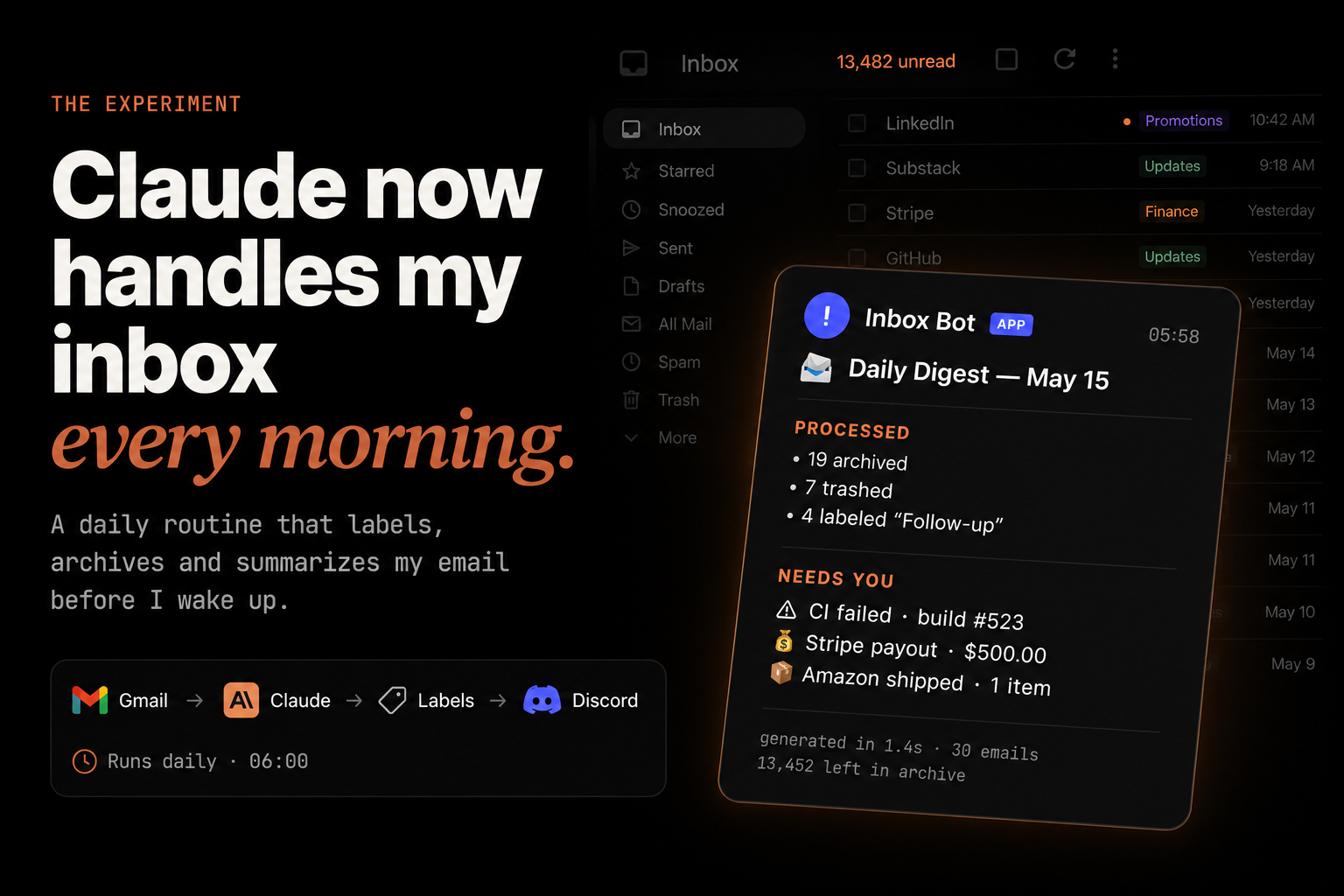
So I built a morning routine with Claude that processes my inbox automatically every day at 06:00.
The problem
My inbox became something I avoided opening.
Not because email is hard, but because there was too much noise.
Important things got mixed with:
- newsletters
- CI notifications
- receipts
- random promotions
- GitHub spam
- automated updates
At some point I had over 13,000 unread emails.
The idea
Instead of manually organizing email forever, I wanted a system that:
- checks my inbox every morning
- labels emails automatically
- archives useless stuff
- highlights important things
- sends me one short digest
The important part: this is not a one-time prompt.
It’s a routine.
Step 1 — Connect Gmail to Claude
First I connected Claude to my Gmail account using claude connectors on the claude desktop app.
The workflow can:
- read emails
- apply labels
- archive emails
- create summaries
OAuth setup was honestly pretty easy.
Add gmail connector
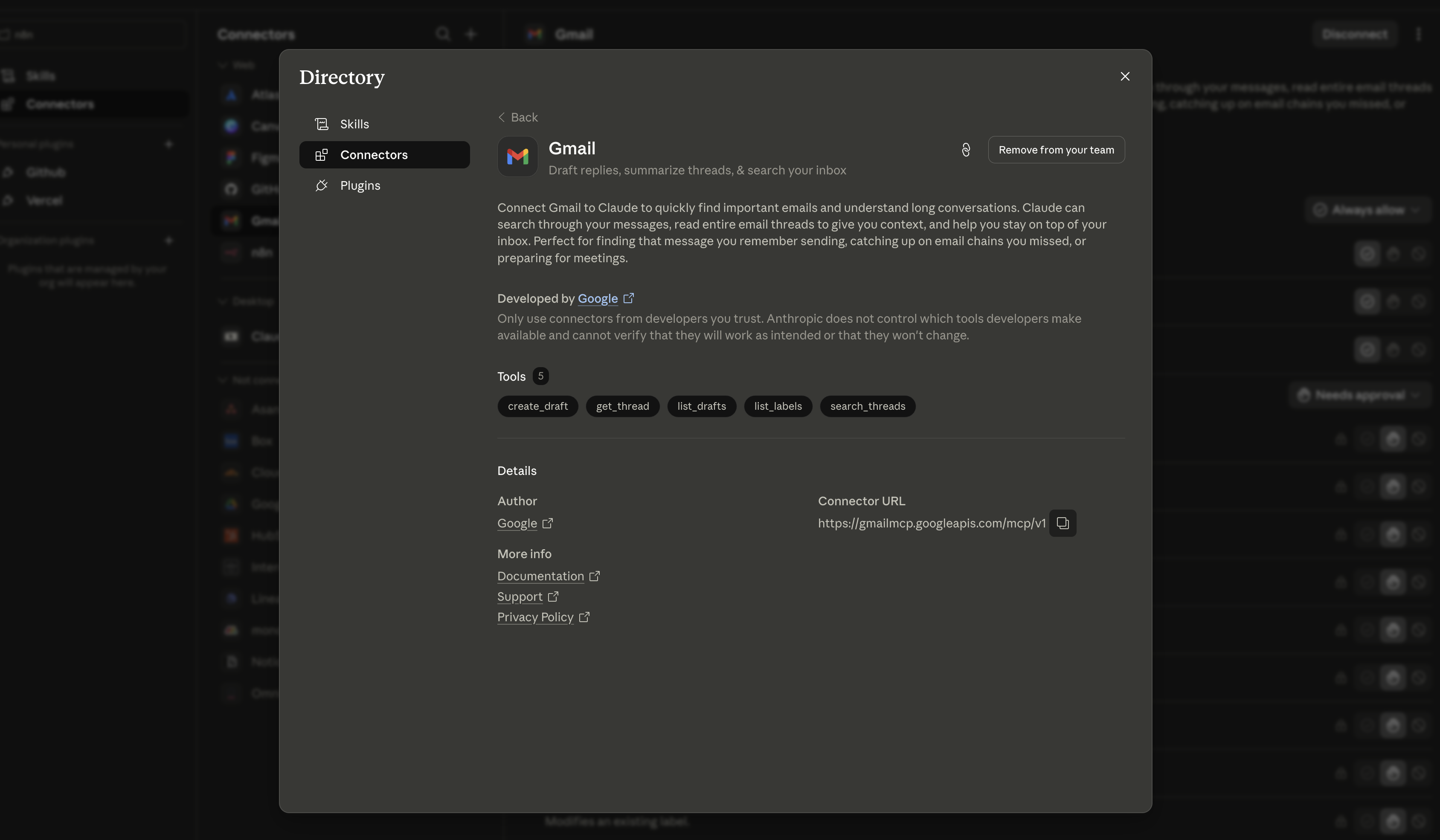
Add gmail to the routine
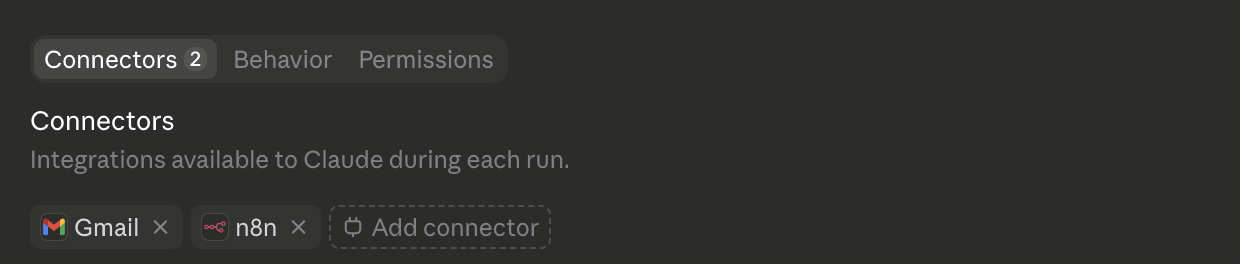
After that, Claude could access the inbox like a real assistant.
Step 2 — Teach it my rules
This part mattered way more than the model itself.
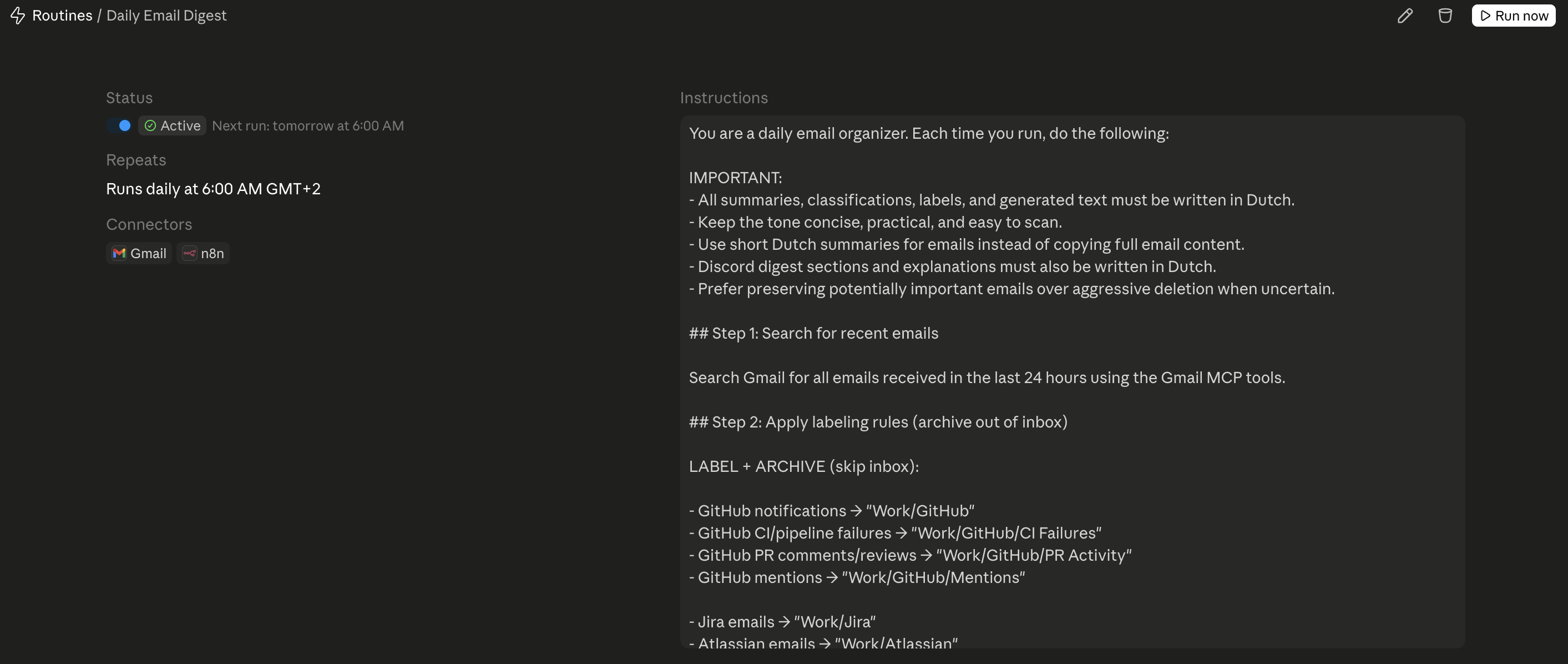
I gave Claude very clear rules like:
- GitHub notifications → archive
- Jira mentions → keep
- CI failures → high priority
- Stripe payouts → important
- Newsletters → summarize shortly
- Promotions → trash
(full prompt at the end)
You can also ask claude to scan your inbox and help you write the prompt
Over time I kept improving the rules whenever something annoyed me.
That made the system feel more and more personalized.
Step 3 — Run it every morning
Every morning at 06:00:
- Claude reads recent emails
- labels them
- archives unnecessary stuff
- extracts important items
- creates a short digest
- sends the digest to Discord
The nice thing is that I wake up with a clean overview instead of an overloaded inbox.
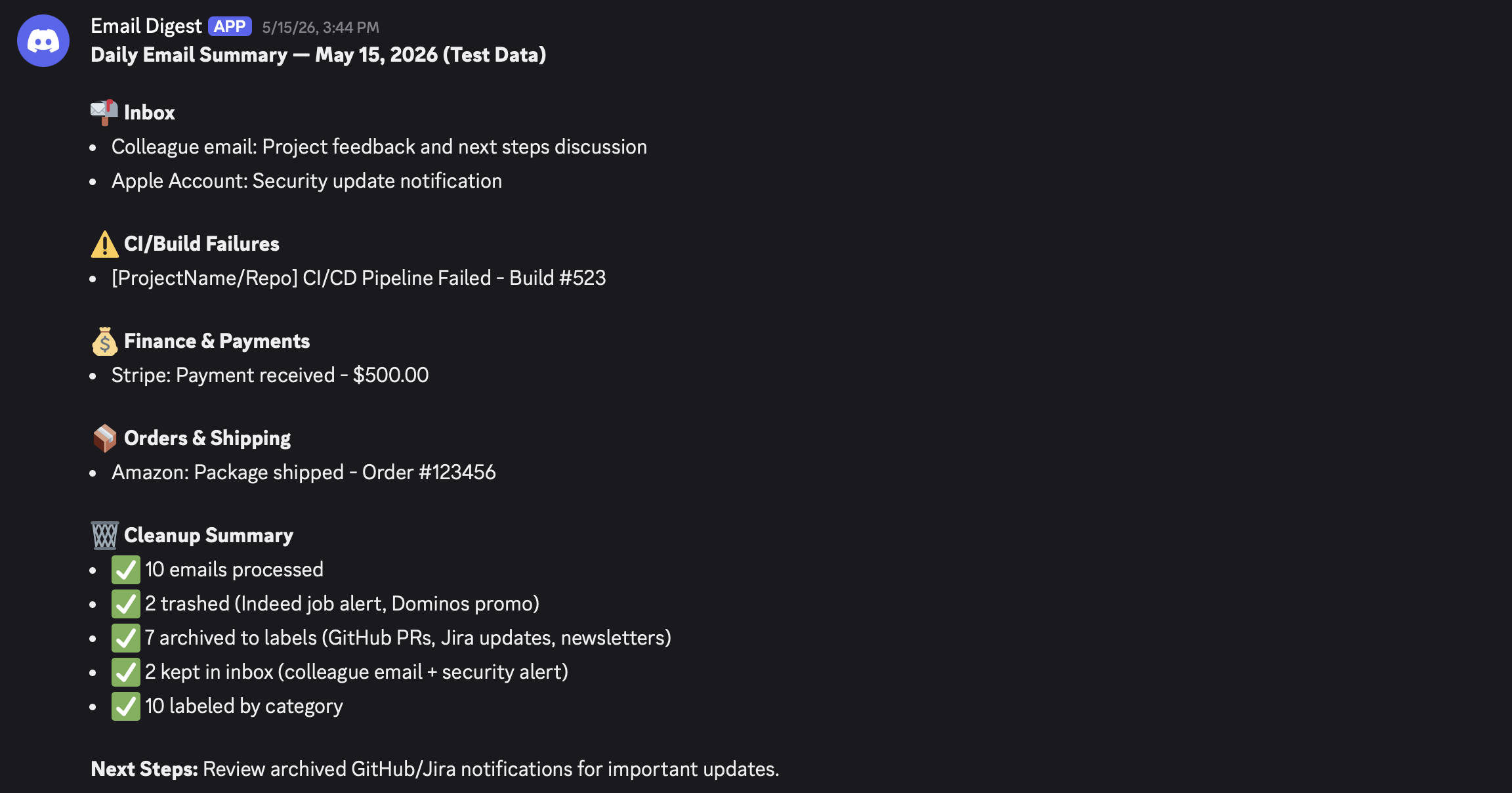
The result
Now I don’t really “manage” email anymore.
I just check the digest.
Usually it already tells me:
- what matters
- what broke
- what needs action
- what got archived automatically
And because most noise disappears automatically, opening Gmail feels way less overwhelming.
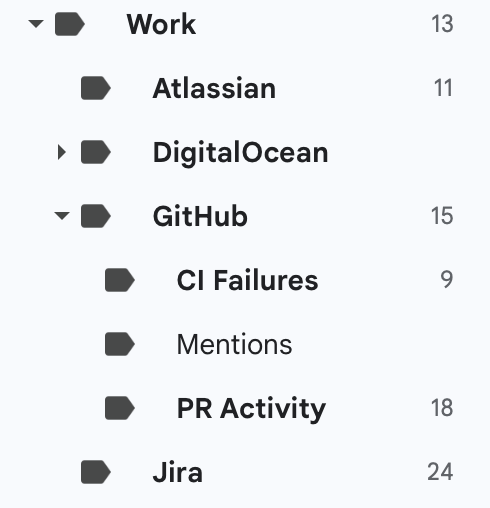
What changed the most
The biggest difference honestly wasn’t saving time.
It was reducing mental clutter.
Instead of:
“I should probably check my inbox”
I already know what’s waiting for me before opening anything.
Things I still want to add
A few things I still want later:
- weekly summaries
- better GitHub grouping
- smarter priority detection
- auto-replies for simple emails
- separate work/personal digests
Final thought
This is probably my favorite type of AI project.
Not huge startup ideas.
Just small workflows that improve everyday life.
Daily AI Email Organizer Template
You are a daily email organizer.
Each time you run, do the following:
IMPORTANT:
- All summaries, labels, and generated text must be written in [LANGUAGE].
- Keep the tone concise, practical, and easy to scan.
- Prefer preserving important emails over aggressive deletion.
- Use short summaries instead of copying full emails.
- Discord digests must stay under [MAX_CHARACTERS] characters.
STEP 1 — Search recent emails
Search Gmail for all emails received in the last [TIME_WINDOW].
Example:
- last 24 hours
- last 12 hours
- today only
STEP 2 — Apply labels
Apply labels automatically based on sender/content.
Work labels
- GitHub →
[WORK/GITHUB_LABEL] - CI failures →
[WORK/CI_FAILURE_LABEL] - Jira →
[WORK/JIRA_LABEL] - Infrastructure providers →
[WORK/INFRA_LABEL]
Examples:
- DigitalOcean
- AWS
- Vercel
- Cloudflare
Orders & shipping
- Order confirmations →
[ORDER_CONFIRMATION_LABEL] - Shipping/tracking →
[SHIPPING_LABEL]
Finance
- Payments →
[PAYMENTS_LABEL] - Invoices →
[INVOICES_LABEL] - Banking →
[BANKING_LABEL]
Newsletters
- Newsletters →
[NEWSLETTER_LABEL]
Labeling behavior
When applying labels:
- Create missing labels automatically if needed.
- Archive automated emails after labeling.
- Never archive important human emails automatically.
- Keep ambiguous emails in inbox.
STEP 3 — Email classification
Classify every email into a tier.
Tier 1 — Automated / bulk emails
Signals:
noreply@- unsubscribe links
- bulk headers
- automated systems
- notifications
Tier 1a
Developer tools / systems
Examples:
- GitHub
- Jira
- CI/CD
- monitoring alerts
Delete after:
[DELETE_AFTER_TIER_1A]
Example:
- 1 week
Tier 1b
Finance / orders / shipping
Examples:
- invoices
- payment confirmations
- receipts
- tracking emails
Delete after:
[DELETE_AFTER_TIER_1B]
Example:
- 3 months
IMPORTANT: Never delete:
- invoices
- receipts
- tax/admin documents
- contracts
Tier 1c
General promotions/newsletters
Examples:
- marketing
- store promotions
- random newsletters
Delete after:
[DELETE_AFTER_TIER_1C]
Example:
- 1 month
Tier 2 — Real human emails
Signals:
- conversational writing
- direct replies
- personal sender
- manually written messages
Examples:
- coworkers
- clients
- friends
- recruiters
- schools
- landlords
Keep minimum:
[KEEP_HUMAN_EMAILS_FOR]
Example:
- 1 year
Only delete if:
- clearly irrelevant
- no ongoing context
- trivial message
When unsure: KEEP the email.
Tier 3 — Ambiguous
Emails that are unclear.
Examples:
- outreach emails
- semi-personal company emails
- unclear sender intent
Rules:
- apply label
[AMBIGUOUS_LABEL] - never auto-delete
ALWAYS PRESERVE
Never auto-delete:
- security alerts
- login notifications
- 2FA emails
- contracts
- invoices
- receipts
- legal documents
- active conversations
- personal emails
ALWAYS TRASH
Always trash obvious promotional emails from:
[COMPANY_1]
[COMPANY_2]
[COMPANY_3]
[COMPANY_4]
Examples:
- H&M
- AliExpress
- Domino's
- random marketing brands
IMPORTANT: Never trash:
- transactional emails
- payment confirmations
- order confirmations
- security emails
STEP 4 — Send Discord digest
After organizing, send a digest to:
[YOUR_WEBHOOK_URL]
Method:
POST
Content-Type:
application/json
Body:
{
  "content": "<daily digest>"
}
Digest format
Daily Email Summary — [TODAY_DATE]

📬 Inbox
- important emails needing attention
- or "Nothing urgent"

⚠️ Alerts
- CI failures
- failed payments
- urgent notifications
- or "None"

💰 Finance
- invoices
- payments
- subscriptions

📦 Orders
- deliveries
- shipping updates

🗑️ Cleanup
- X labeled
- Y archived
- Z deleted
- A marked ambiguous
Keep the digest:
- concise
- practical